Battery detection guide
Battery Not Detected on Laptop
If Windows says "no battery detected," the laptop is not recognizing the battery properly. That can feel dramatic, but it does not always mean the battery is completely dead. Sometimes Windows, the BIOS, or the battery connection is simply not reporting it correctly.
This guide focuses on the detection problem itself so you can work through the likely causes in the right order before deciding the battery needs replacement.
Confirm that the battery itself is missing
Stop before testing if the battery is swollen, overheating, leaking, or physically damaged. Shut down, disconnect the charger if safe, and discontinue use. Do not keep running on AC power, press a raised case flat, open the battery pack, or try to puncture it. Arrange manufacturer or qualified repair support.
“No battery is present” and “battery not detected” use the same checks. A missing taskbar icon alone does not establish either fault. Open Settings > System > Power & battery and Device Manager > Batteries. If a battery and its charge are still reported, restart Windows and check the manufacturer's diagnostics before treating this as an absent battery.
- Restart using stable, supported AC power. Save open files first. Use only your laptop maker's power-reset instructions for the exact model; a generic long power-button hold is not a universal battery reset.
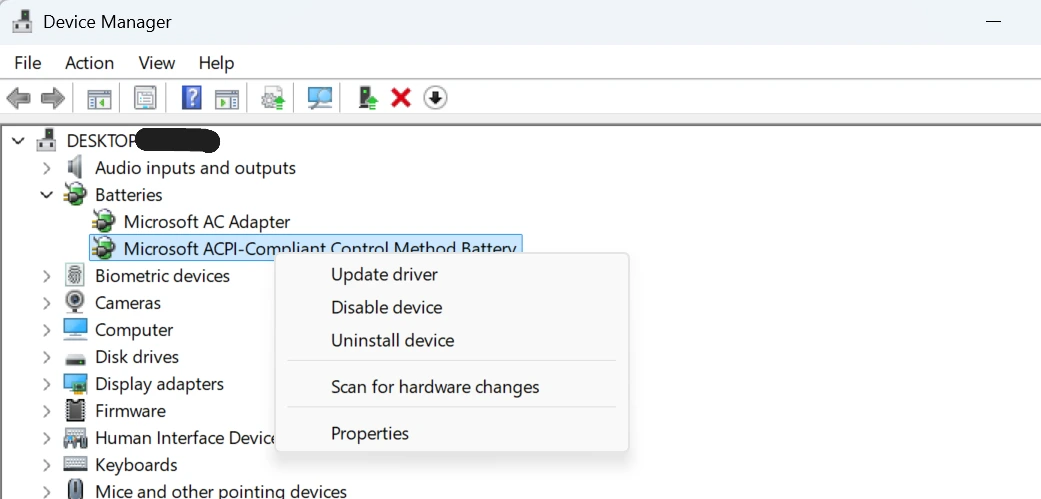
- Inspect Device Manager before uninstalling anything. Record the battery entry and any error in Properties > General. Select Action > Scan for hardware changes. A grey entry under View > Show hidden devices can be a past connection, not a currently detected battery.
- Compare with firmware diagnostics, if your model provides battery status. View the status without changing settings. A missing battery in both places makes a connection, battery controller or hardware fault more likely. A firmware screen with no battery-information feature tells you nothing by itself.
- Use model-specific service help if detection never returns. Do not open an internal battery pack or remove a laptop's cover as a casual reset. Only reseat a user-removable battery when the official manual permits it and there is no damage.
If the battery is detected but refuses to charge, continue with plugged in but not charging. A battery report cannot measure a battery the system cannot currently read.
Error meaning
What this error means
"No battery detected" usually means Windows cannot communicate with the battery as expected. That may be caused by a driver problem, power reset issue, BIOS behavior, loose internal connection, or outright battery hardware failure.
Troubleshooting
Troubleshooting steps to try first
- Shut down the laptop completely.
- Unplug the charger.
- Follow the manufacturer's power-reset procedure for your exact model. Do not assume a long button press disconnects an internal battery.
- Reconnect power and start the laptop.
- Check whether the battery icon or status changed.
Drivers
Battery driver reset
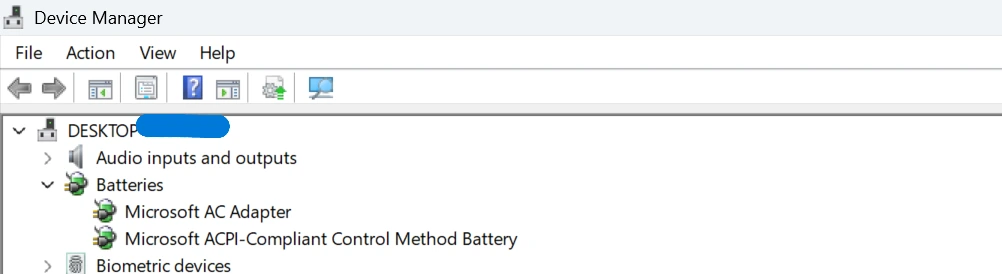
Device Manager is one of the first places to check because Windows battery detection depends on the right battery drivers loading correctly.
- Open Device Manager.
- Expand Batteries.
- Only with reliable AC power, uninstall the battery entries specified by your model's support guide. Keep driver-package deletion unchecked and restart to allow redetection.
- Restart the laptop.
If the battery reappears after restart, the problem was likely a Windows-side detection issue rather than permanent hardware failure.
Firmware
BIOS checks
Some laptops can still show battery information in BIOS even when Windows cannot. If BIOS also fails to show the battery, that points more strongly toward a hardware or connection problem.
BIOS is also worth checking if the issue started right after an update, after the battery was replaced, or after the laptop sat unused for a long time.
Hardware
Loose battery or hardware failure
On laptops with internal batteries, a loose connection or failing battery board can stop proper detection. On older models with removable batteries, reseating the battery can sometimes help.
If the battery is not detected in BIOS either, or if charging is also failing, hardware becomes much more likely than a Windows-only issue.
Battery health
Battery health checks that still matter
If the battery is detected again even briefly, try generating a report with the How to Check Laptop Battery Health guide. That gives you more context about whether the battery was already heavily worn before detection failed.
You can also use the Battery Health Check Laptop tool if you are able to recover Design Capacity and Full Charge Capacity from a recent report.
Replacement decision
When replacement is needed
- Windows and BIOS both fail to detect the battery
- Charging is also unreliable or completely dead
- The battery was already badly worn before detection stopped
- The laptop is older and other battery problems were already happening
If you want more context on how use and age affect wear, the Battery Cycle Count Explained guide is a useful companion.
FAQ
What does no battery detected mean on a laptop?
It means Windows is not seeing the battery correctly. That can happen because of driver problems, a firmware issue, poor battery connection, or battery hardware failure.
Can a battery driver reset fix battery not detected?
Yes, sometimes. Reinstalling the Microsoft battery entries in Device Manager can help Windows detect the battery again if the issue is software-related.
Can BIOS cause battery not detected?
Yes. BIOS or firmware can affect how the battery is recognized, especially after updates, battery replacement, or power-related glitches.
Does no battery detected mean the battery is dead?
Sometimes, but not always. A completely failed battery is one possibility, but so are loose connections, detection issues, and driver problems.
Should I replace the battery if Windows cannot detect it?
Replacement becomes more likely if driver resets and BIOS checks do not help, especially when the laptop is older, charging is unreliable, or the battery was already showing heavy wear.
What should I check first?
Start with a restart, power cycle, Device Manager battery reset, and BIOS check. Those steps rule out the most common software and detection problems before you assume hardware failure.