Design Capacity
This is the original capacity the battery was designed to hold when it was new. Think of it as the baseline.
Battery health guide
If your laptop battery is draining fast, shutting down early, overheating, dropping from 40% to 10% without warning, or charging more slowly than it used to, checking battery health is one of the first things worth doing. It helps you separate a worn battery from other issues like heavy apps, heat, or Windows power settings.
Windows already includes a built-in battery report, so you do not need extra software to start. In real troubleshooting, this report is useful because it shows how much capacity the battery had when new, how much it can still hold now, and whether the behavior you are seeing matches normal wear or something more serious.
This guide shows you how to generate the report, where to find it, how to read the most important sections, and how to use the Battery Health Check Laptop tool to turn the numbers into a clearer battery health percentage.
Windows steps
cmd, and press Enter. You can also search for Command Prompt from the Start menu. Administrator access is not usually required for this report.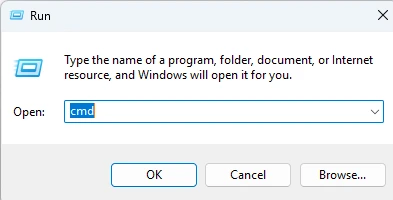
powercfg /batteryreport. Press Enter and Windows will generate a battery report as an HTML file.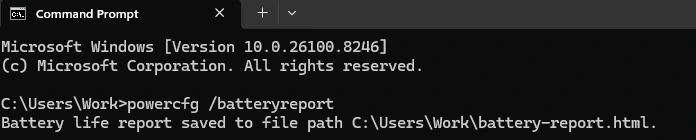
C:\Users\YourName\battery-report.html.If Command Prompt shows a saved file path, copy it exactly. If you cannot find the report later, check your user folder first because that is where Windows usually stores it.
Reading the report
The report can look technical at first, but only a few sections matter for most people. If you know what these fields mean, you can usually tell whether the problem is simple battery wear or whether you should also check for heat, app usage, or charging issues.
If cycle count is the part that confuses you most, Battery Cycle Count Explained breaks down what that number means and how to interpret it alongside health percentage.
This is the original capacity the battery was designed to hold when it was new. Think of it as the baseline.
This is how much charge the battery can hold now. When this drops well below design capacity, battery wear has increased.
This shows how many charge cycles the battery has gone through. A higher count usually means more age and more wear.
Wear is not always listed as a single field, but you can understand it by comparing full charge capacity against design capacity.
This section can help explain why the battery seems to drop quickly by showing how the laptop used power over recent sessions.
This gives rough runtime estimates. It is not perfect, but it can confirm whether the battery is lasting much less than it used to.
After you find Design Capacity and Full Charge Capacity, use the Battery Health Check Laptop tool to calculate a quick percentage. That makes the report easier to understand at a glance.
Battery percentage
Once you have Design Capacity and Full Charge Capacity, the basic idea is simple: compare the current capacity against the original one. That tells you roughly how much of the battery's original storage ability is still left.
If you want a quicker answer without doing the math by hand, enter both values into the Battery Health Check Laptop tool. It shows whether the battery looks good, moderately worn, or close to replacement.
Practical troubleshooting
Replacement guide
A battery does not need to fail completely before replacement makes sense. In practice, replacement becomes worth considering when the laptop no longer feels dependable away from the charger.
If you are unsure whether your result is normal for the battery's age, this guide on how long should a laptop battery last gives more context on lifespan and typical wear.
If you want a symptom-based checklist before spending money, read the guide on signs your laptop battery needs replacement.
If your main problem is charging behavior instead of runtime, compare the symptoms with Laptop Plugged In, Not Charging, Laptop Battery Charging Slow, or Battery Not Detected on Laptop.
Use the tool
After you find Design Capacity and Full Charge Capacity in your Windows battery report, enter both values into the Battery Health Check Laptop tool to calculate your battery health percentage.
The tool compares design capacity with full charge capacity and shows whether your battery is good, moderate, or may need replacement.
Open Command Prompt, run powercfg /batteryreport, and then open the saved battery-report.html file. In the Installed batteries section, compare Design Capacity with Full Charge Capacity to understand battery wear.
Windows includes a built-in battery report, so you do not need extra software. Run powercfg /batteryreport, open the report, and review Design Capacity, Full Charge Capacity, cycle count, and battery life estimates.
Around 80% usually means the battery is still usable, but it has clear wear and shorter runtime than when it was new. For many people that is acceptable, but if you also have fast drain or shutdowns, it may already be affecting daily use.
A result above 90% is generally good, 70% to 89% shows moderate wear, and below 70% often points to a battery that is near replacement territory. The percentage is only part of the story, so symptoms still matter.
Many laptop batteries last roughly 2 to 5 years, depending on heat, charging habits, workload, and total cycle count. If you want more lifespan context, compare the health result with age and everyday symptoms.
True battery wear usually does not reverse because lithium batteries lose capacity permanently over time. Sometimes the reported estimate looks slightly better after updates, calibration, or normal charge cycles, but a worn battery does not become new again.
Heavy gaming does not instantly ruin a battery, but the extra heat and power draw can increase wear faster over time. Long hot sessions are especially hard on battery lifespan.
Yes. powercfg is a built-in Windows command-line tool used for power diagnostics and reports. Running powercfg /batteryreport only generates a report and does not harm the system.
Battery wear increases because all rechargeable batteries lose capacity through age, heat, and charge cycles. High temperatures, constant heavy use, and long-term charging stress can make wear climb faster.