It is common for a Windows 11 update to make a laptop feel slower for a while, but not every post-update slowdown is harmless. This guide helps you decide when to wait, when to restart, and when to investigate disk, drivers, and startup impact more closely.
Quick answer
Why updates can slow a laptop down
Quick answer
After a Windows update, the laptop may still be indexing files, cleaning up old update data, downloading more patches, updating drivers, or rechecking startup items. That activity can make the system feel slow even though the update itself already finished.
Why it happens
Why laptops slow down after updates
Windows often keeps working after the restart you see on screen. Search indexing may rebuild, update cleanup can run, background scans may start, and drivers can change how the laptop behaves for a while.
Background activity
Background indexing and cleanup
If the laptop feels busy but gradually improves over a few hours, indexing and cleanup are strong suspects. This is more noticeable on older drives and on laptops with limited free storage.
Some updates change graphics, storage, or chipset drivers. When that happens, you may notice new lag, odd fan behavior, or worse startup performance even if nothing else changed.
Restart cleanup
Restart and pending update cleanup
Check for more pending updates. Windows often installs updates in stages.
Restart once more. A second clean restart can finish what the first one left pending.
Give it a little time if the update was recent. Especially on slower storage.
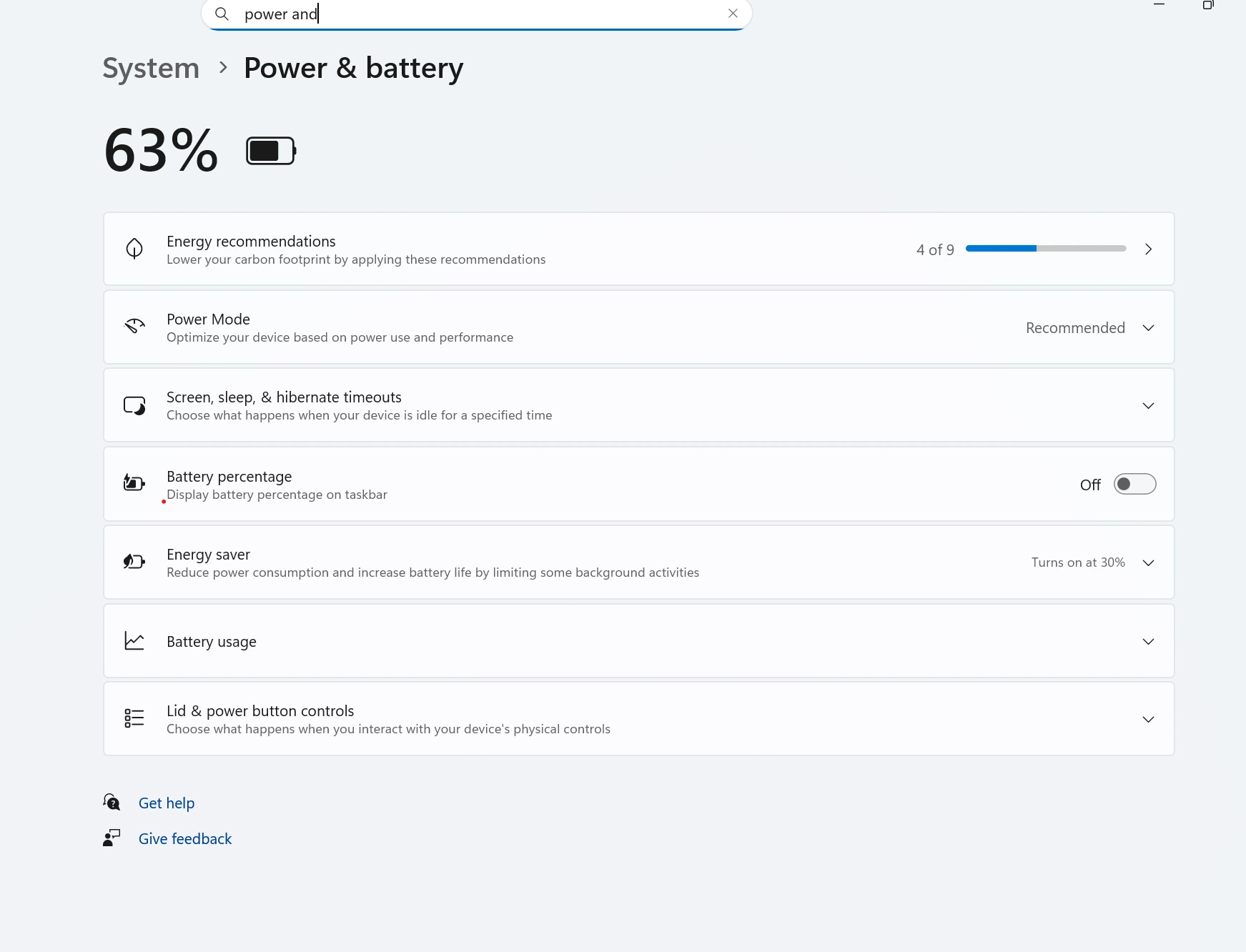
Power mode
Power mode can make post-update slowdown feel worse
A lower-power profile will not cause every slowdown, but it can make an update-heavy system feel much more sluggish. If the laptop is on battery or has been switched to a conservative power mode, check that before judging the update too harshly.
Power mode can influence how responsive the laptop feels while Windows is finishing update work.
Startup impact
Startup items may become more noticeable after updates
If the laptop is slow mainly after sign-in, startup apps may be colliding with the update cleanup work. This is one reason laptops can feel fine later in the day but terrible right after boot.
Wait or troubleshoot
When to wait vs when to troubleshoot
Wait a bit if the update finished recently and the system seems to be improving. Troubleshoot sooner if the laptop keeps freezing, disk usage stays high, or the slowdown lasts much longer than the normal post-update window.
A laptop can feel slow after an update because Windows is still indexing files, finishing cleanup, installing drivers, or downloading additional updates in the background.
Should I wait or troubleshoot after an update?
If the update finished recently, it is often worth waiting a little and restarting once. If the slowdown lasts well beyond that, it makes sense to troubleshoot disk usage, startup apps, and driver issues.
Can updates cause high disk usage?
Yes. Indexing, file cleanup, patching, and background optimization after updates can cause temporary high disk usage, especially on older HDD-based laptops.
Can a power mode setting make update slowdown feel worse?
Yes. A conservative power mode can make a post-update slowdown feel more severe, especially on a laptop that is already busy with indexing or cleanup.
What should I check first if Windows 11 update made my laptop slow?
Check whether more updates are pending, restart once, look at disk and memory usage, and make sure startup apps did not multiply after the update.
When should I worry after an update?
If the laptop stays slow for days, freezes often, or shows repeated driver and startup problems after normal restart and cleanup, it is time to troubleshoot more directly.