Quick answer
The best Windows 11 speed-up steps are reducing startup apps, freeing storage, closing heavy tabs, checking disk and memory usage, finishing updates, reducing unnecessary visual load, and ruling out overheating.
Windows 11 checklist
If you want one practical checklist for making Windows 11 faster, start here. This page focuses on safe changes that actually help everyday performance instead of risky tweaks that only sound clever.
Quick answer
The best Windows 11 speed-up steps are reducing startup apps, freeing storage, closing heavy tabs, checking disk and memory usage, finishing updates, reducing unnecessary visual load, and ruling out overheating.
Checklist
If Windows still feels damaged after crashes or failed updates, the Repair Corrupted System Files in Windows guide is worth checking before you jump to a reinstall.
Browser load
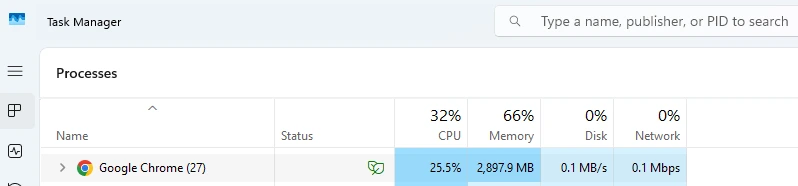
It is surprisingly common for Windows 11 slow fix searches to end with a browser cleanup rather than a full system rebuild. Do not underestimate the impact of tabs, streaming pages, multiple web apps, and extensions.
Power mode
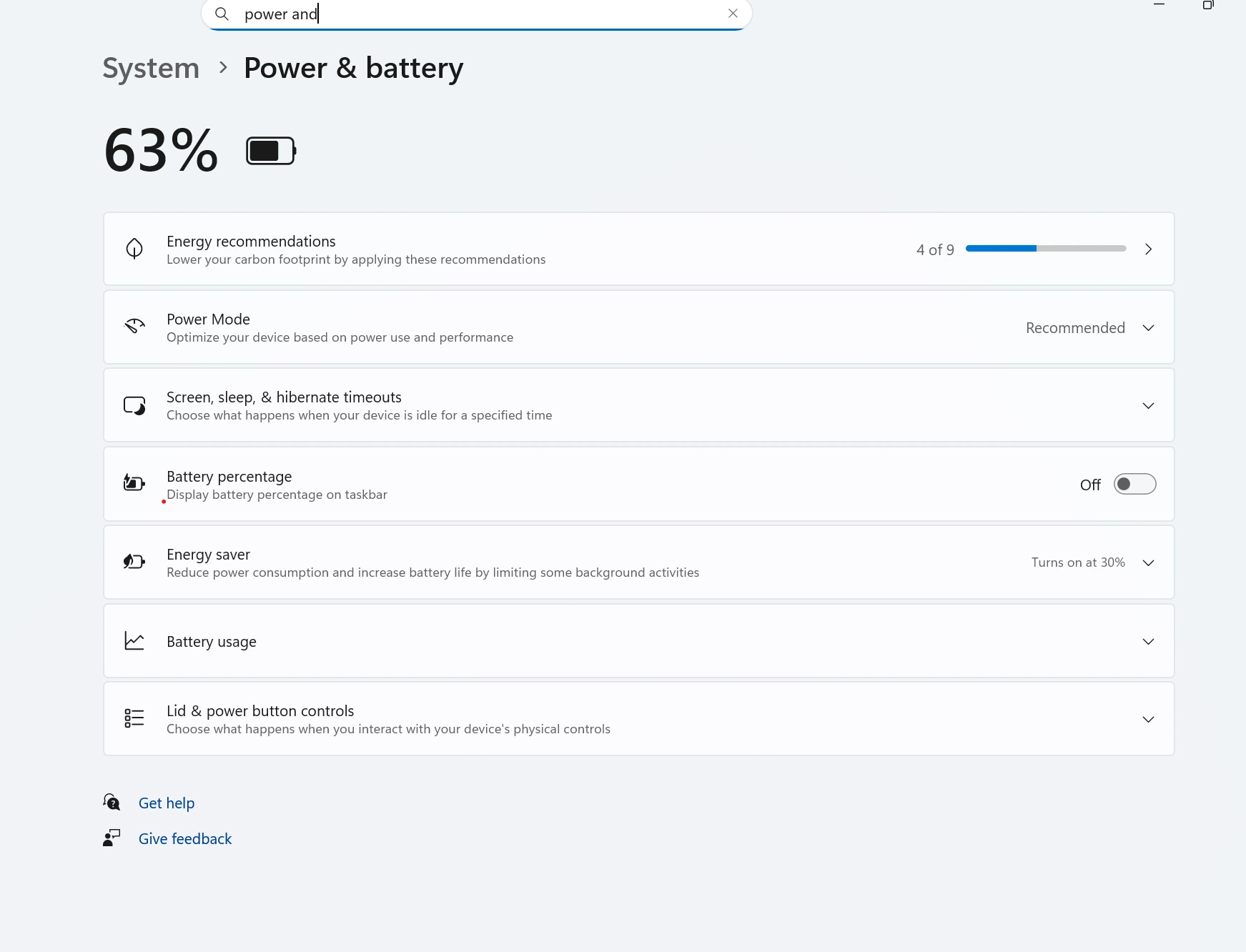
On some laptops, a lower power mode or battery-focused setting can make Windows 11 feel sluggish, especially when other background work is already happening.
What not to do
Start with safe fixes like reducing startup apps, freeing storage, closing heavy browser tabs, checking disk and memory usage, installing updates, and ruling out overheating before trying deeper tweaks.
The fastest wins usually come from fewer startup apps, fewer heavy tabs, more free storage, and an SSD instead of an HDD when the laptop still uses older storage.
Reducing some visual effects can help a little on weaker laptops, but it rarely solves the main slowdown by itself. It works best after you address startup load, storage, and memory issues.
Yes. On some laptops, a lower power mode can make Windows feel less responsive, especially when the system is already under load.
Hardware upgrades help most when the laptop still uses an HDD, has very little RAM for modern multitasking, or stays slow after the safe software fixes are done.
If cleanup did not help, the problem may be high disk usage, high memory usage, an update-related slowdown, overheating, or older hardware that is simply underpowered for your workload.